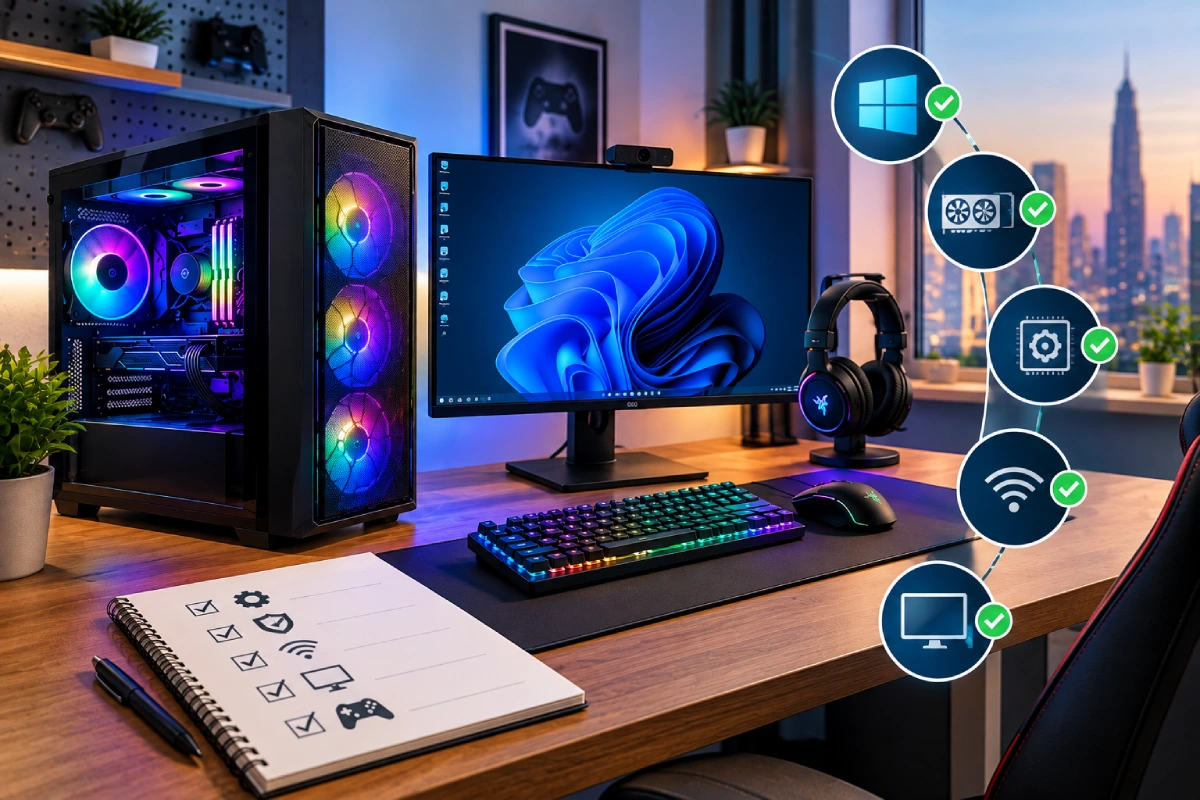
Getting your first gaming PC is exciting. You might already have a list of games ready to download, but taking a little time to prepare your computer can help you avoid common problems and enjoy a smoother gaming experience from day one.
Before installing games, you should check your hardware, complete your operating system setup, install the correct drivers, configure your monitor, and make sure your computer is secure and properly ventilated. These steps are important whether you have purchased a prebuilt gaming computer or ordered a customised system.
For new gamers in the UAE, it is also worth considering room temperature, dust management, internet reliability, and available storage. Here is a practical guide to setting up your first gaming PC before downloading your favourite games.
1. Check Your Gaming PC and Connections
Before switching on your computer, inspect the case and confirm that all essential connections are secure. If your PC was delivered recently, check for visible shipping damage and make sure the accessories listed with your purchase are included.
Connect the power cable, monitor, keyboard, mouse, and internet connection. If your monitor and graphics card have multiple display ports, choose a compatible connection that supports your monitor’s resolution and refresh rate.
One important tip: Connect your monitor to the graphics card’s display output when your system has a dedicated GPU. Connecting it to the motherboard instead may prevent you from using the dedicated graphics card’s display output as intended.
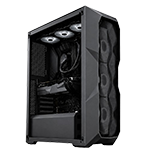
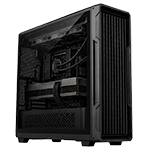
Place the PC on a stable surface with enough space around the case for airflow. Avoid blocking vents or placing the computer inside a cramped cabinet.
If you are still choosing your first system, explore HexTech’s Starter Series gaming PCs under AED 5,000 to compare options suited to entry-level gaming budgets.
2. Complete Windows Setup and Updates
Most prebuilt gaming PCs supplied with Windows are ready for initial configuration. Follow the on-screen instructions, select your region and keyboard preferences, connect to the internet, and complete the required account setup.
If you purchased a custom-built PC without an operating system, you may need to install a properly licensed copy of Windows first. Check the product details before reinstalling anything.
Once you reach the desktop, run Windows Update. This helps install important security updates, system improvements, and supported drivers.
Follow these steps:
- Open Settings and select Windows Update.
- Check for available updates.
- Install the relevant updates.
- Restart the computer when requested.
- Check again until no further important updates are waiting.
Avoid interrupting updates while they are being installed. Completing this process before downloading large games can reduce interruptions later.
3. Install the Correct Graphics and Hardware Drivers
Drivers help Windows communicate properly with your PC’s components. The graphics driver is particularly important because it supports gaming performance, display features, compatibility, and fixes for supported games.
Download graphics drivers from the official support website for your NVIDIA or AMD graphics card. If your computer uses Intel graphics, use the appropriate official Intel support resources.
You may also need drivers for your motherboard, network adapter, audio hardware, or other components. Start with Windows Update and the manufacturer’s support page for your specific PC or motherboard model.
Keep these points in mind:
- Download drivers from official manufacturer websites.
- Confirm that the driver matches your exact hardware and operating system.
- Restart the computer if installation requires it.
- Avoid unknown driver-download websites and unnecessary driver-updater utilities.
- Do not update the BIOS simply because a newer version exists; follow the manufacturer’s instructions and update when there is a clear reason.
After installation, check that your graphics card, network connection, sound, and other essential devices are working correctly.
4. Configure Your Monitor for Gaming
A powerful gaming PC cannot deliver its best experience if your monitor is configured incorrectly. Many first-time users leave their display running at a lower refresh rate than it supports.
Open Windows display settings and select your monitor’s recommended resolution. Then navigate to the advanced display settings and choose the appropriate refresh rate.
For example, a 144Hz monitor may initially operate at 60Hz until you select the higher supported setting. Available options depend on the monitor, cable, connection, and graphics hardware.
You should also check:
- Whether the monitor is connected to the correct graphics output
- Whether adaptive-sync features such as FreeSync or G-SYNC are supported and enabled appropriately
- Whether brightness and contrast are comfortable
- Whether HDR is supported and configured correctly for your display
Do not assume that every feature should be enabled automatically. Experiment with supported settings and keep the configuration that provides a clear, comfortable picture.
5. Secure Your PC Before Downloading Games
Security is easy to overlook when you are eager to start playing. However, your gaming PC may eventually contain personal files, payment information, saved accounts, and other important data.
Start by checking that Windows Security and its real-time protection features are enabled. Keep Windows and your installed applications updated, and use strong, unique passwords for your gaming accounts.
Consider these basic precautions:
- Enable two-factor authentication where available.
- Download games through official stores and launchers.
- Avoid suspicious cheats, cracked software, and unofficial installers.
- Review application permissions before granting administrator access.
- Never share account credentials or verification codes.
You do not usually need several third-party antivirus programs running simultaneously. Built-in Windows protection is a sensible starting point for many users when kept updated and configured correctly.
6. Check Storage Space and Organise Your Files
Modern games can occupy substantial storage space, especially when you install multiple large titles or downloadable content. Before downloading anything, open File Explorer and check the available space on your main drive.
An SSD is generally preferable for installing Windows and games because it offers faster loading than a traditional hard drive. If your PC has multiple drives, decide where your games, recordings, documents, and downloads should be stored.
Create a simple folder structure for screenshots, gameplay clips, and personal files. This makes it easier to locate content later.
Also remember to leave some free space on your Windows drive for updates, temporary files, and normal system operation. If storage is limited, install your most-played games first and add others as needed.
7. Test Cooling and Airflow
Gaming puts more load on your processor and graphics card than many everyday tasks. Before spending hours playing, check that your fans operate normally and that the PC has sufficient ventilation.
In the UAE, air-conditioning, dust exposure, and room temperature can affect how comfortably your computer operates. Place the tower away from direct sunlight and keep its ventilation areas clear.
Use a reputable hardware-monitoring utility or the manufacturer’s software to observe CPU and GPU temperatures. Check the component manufacturer’s specifications when assessing temperature readings, because normal operating ranges vary by hardware and workload.
Watch for warning signs such as repeated thermal throttling, sudden shutdowns, or unusual fan noises. If the system behaves abnormally, investigate the cause before continuing demanding gaming sessions.
8. Configure Audio, Network, and Gaming Accounts
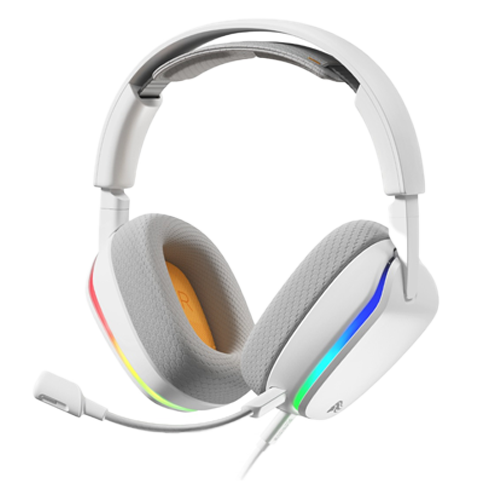
Before installing your first game, confirm that Windows is using the correct audio output. Select your headset, speakers, or monitor audio device as appropriate, and test your microphone if you plan to use voice chat.
For online gaming, a stable internet connection is often more important than simply having a high download speed. Whenever practical, use Ethernet for a more consistent connection. If you use Wi-Fi, position the PC where the signal is strong and reduce interference where possible.
Next, create or sign in to the accounts required by your chosen game stores and launchers. Enable account security features and confirm that you can recover access if you lose your password.
If you are planning to stream as well as play, read our guide to a gaming and streaming PC under AED 5,000 for budgeting considerations.
9. Create a Restore Point and Check Warranty Details
Once Windows, drivers, and essential settings are working correctly, consider creating a system restore point if the feature is available and enabled. A restore point can help reverse certain system changes, although it is not a replacement for a full backup.
Back up important personal files separately. Cloud storage or an external drive can protect documents and recordings if your Windows installation or storage device develops a problem.
Keep your invoice, system specifications, serial numbers, and warranty information somewhere safe. Review the applicable HexTech terms and conditions so you understand the warranty coverage and relevant service requirements for your purchase.
If you experience hardware faults, contact the seller or manufacturer before attempting repairs that could affect your warranty.
10. Install Your First Game and Optimise Settings
Once the essentials are ready, install a game from its official launcher. Check its system requirements and make sure you have enough free storage before starting a large download.
Launch the game and begin with its recommended graphics preset. Test performance before increasing every setting to maximum. Resolution, textures, shadows, ray tracing, and upscaling options can have different effects depending on your hardware.
For competitive games, you may prefer stable frame rates and responsive controls. For visually demanding single-player games, you might prioritise image quality instead.
Adjust settings gradually, test gameplay, and save a configuration that suits your preferences. There is no single set of graphics settings that is ideal for every gaming PC.
Conclusion
Setting up your first gaming PC properly makes the transition from unboxing to gaming much easier. Check your connections, complete Windows updates, install trusted drivers, configure your monitor, secure your accounts, and verify cooling before downloading games.
These simple steps can prevent avoidable problems and help you get the most from your hardware. Keep your software updated, maintain good airflow, and protect your important files so your gaming setup stays ready for future adventures.
Frequently Asked Questions
1. What should I do first after buying a gaming PC?
Inspect the computer and connections, complete the operating system setup, install updates, and verify that the monitor and essential hardware work correctly.
2. Should I update Windows before installing games?
Yes. Installing important Windows updates first helps improve security, stability, and compatibility before you begin gaming.
3. Do I need to install graphics drivers manually?
Windows may install a suitable driver automatically, but checking the official NVIDIA, AMD, or Intel support resources can help ensure that you have the appropriate driver for your graphics hardware.
4. Why is my 144Hz monitor running at 60Hz?
Windows may be using a lower refresh rate by default. Check advanced display settings and select the supported refresh rate for your monitor and connection.
5. Should I install games on an SSD?
An SSD generally provides faster loading times than a traditional hard drive. Install Windows and frequently played games on an SSD when sufficient space is available.
6. How much free storage should I keep?
There is no universal amount, because game sizes and update requirements vary. Leave enough room for Windows updates, temporary files, and the games you plan to install.
7. Is antivirus software necessary for a gaming PC?
Security protection is important. Windows Security provides built-in protection for many users, provided it remains enabled and updated. Avoid suspicious downloads and unofficial installers.
8. How can I keep my gaming PC cool in the UAE?
Maintain clear airflow, clean dust filters regularly, avoid direct sunlight, and monitor CPU and GPU temperatures during gaming.
9. Should I overclock my first gaming PC?
It is generally best to start with default settings. Learn how your system performs before considering overclocking, which can increase heat, power consumption, and instability.
10. Can I install games before updating my drivers?
You can, but completing essential system and graphics-driver updates first is a practical approach. It helps establish a stable baseline before troubleshooting game performance.