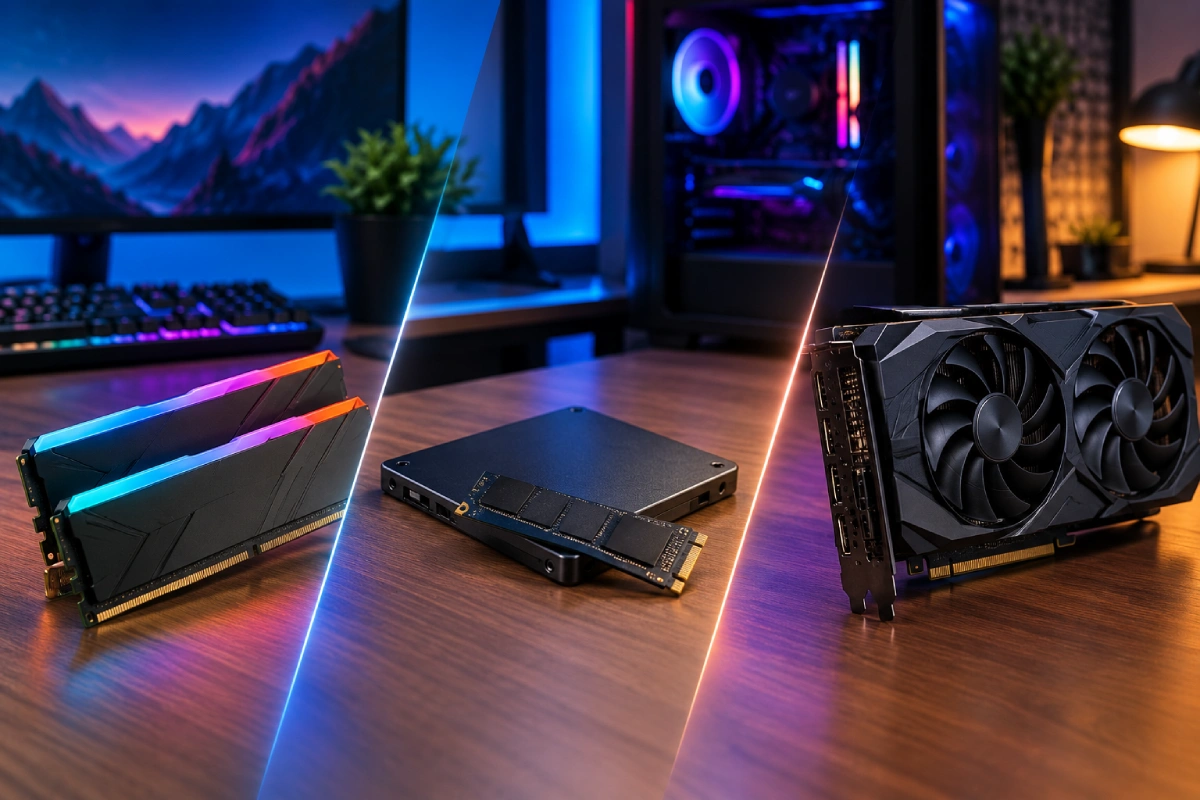
Is your PC running slower than you expected, struggling with newer games, or taking too long to load applications? Before buying new hardware, identify which component is limiting your system. Upgrading RAM, switching to an SSD, or installing a more powerful graphics card can each improve performance, but they solve different problems.
For gamers and PC users in the UAE, the right upgrade depends on how you use your computer, your current specifications, and your budget. Here is how to decide where your money will make the biggest difference.
1. Diagnose Your PC Before Spending Money
Start by identifying the problem rather than assuming that an older component needs replacing. Slow startup, stuttering gameplay, low frame rates, and frequent application delays can have different causes.
Open Task Manager while running the applications or games that usually cause problems. Check CPU, memory, disk, and GPU usage. Also monitor temperatures and available storage space.
Look for these common signs:
- High memory usage: Your PC may need more RAM when several applications are open.
- Slow startup and loading: An older hard drive may be responsible.
- Low gaming frame rates: Your graphics card may be limiting performance, although the CPU can also be responsible.
- Stuttering during multitasking: Insufficient memory, background applications, or storage issues may be contributing.
HexTech’s guide to essential components you need for a gaming PC explains how these parts work together.
2. When Should You Upgrade RAM?
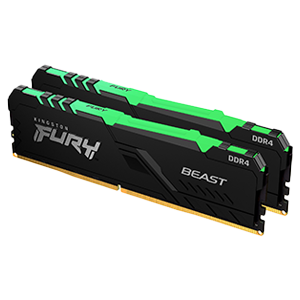
RAM temporarily stores the data your operating system and active applications need. When your computer runs out of available memory, it may rely more heavily on storage, which can make multitasking feel sluggish.
Adding RAM can help if you regularly keep many browser tabs open, edit large files, stream while gaming, or use memory-intensive applications.
How much RAM do you need?
- 8GB: Can be restrictive for modern gaming and multitasking.
- 16GB: A practical starting point for many gaming PCs and everyday users.
- 32GB: A comfortable choice for modern gaming, heavier multitasking, and streaming.
- 64GB or more: May benefit demanding creative, engineering, and professional workloads.
More RAM does not automatically increase gaming performance. If your system already has enough memory, installing additional capacity may produce little noticeable improvement.
Before purchasing, check your motherboard’s supported memory type, capacity, speed, and available slots. Also consider whether replacing your existing kit makes more sense than adding incompatible modules.
3. When Is an SSD Upgrade Worth It?
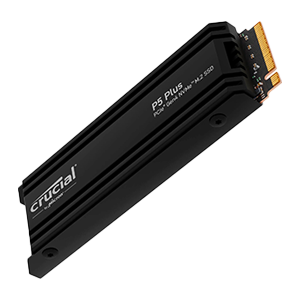
An SSD is often one of the most noticeable upgrades for a PC that still uses a traditional mechanical hard drive. It can improve Windows startup, application launches, file transfers, and game loading.
An NVMe SSD connects through a compatible M.2 slot and can deliver high transfer speeds. A SATA SSD can also provide a substantial improvement over a mechanical hard drive.
However, an SSD usually will not deliver a major increase in gaming frame rates by itself. Its main benefits are responsiveness and loading performance, although faster storage can help in workloads that depend heavily on reading and writing data.
How much storage should you choose?
A 500GB SSD may suit a basic system, but a 1TB drive offers more room for Windows, applications, and several large games. Consider 2TB if you maintain a large game library or work with substantial video files.
Check motherboard compatibility, available M.2 slots, drive dimensions, and supported interfaces. Back up important files before migrating Windows or replacing a drive.
Choose an SSD first if your PC feels slow during everyday use, takes too long to start, or frequently runs short of storage space.
4. When Should You Upgrade Your GPU?
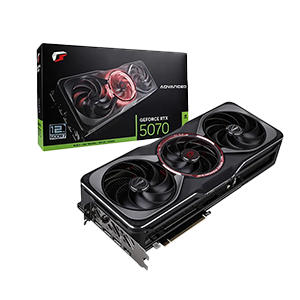
The graphics processing unit (GPU) renders game graphics, effects, and visual details. For many gaming PCs, it is the most important component when improving graphics performance and frame rates.
A GPU upgrade may be the right choice if your favourite games struggle to maintain a smooth frame rate, particularly at higher resolutions or graphics settings.
Before purchasing, consider:
- Resolution: 1440p and 4K generally demand more graphics power than 1080p.
- Target frame rate: High-refresh-rate gaming requires sufficient performance to deliver more frames.
- Video memory: Check the needs of your games and applications.
- Power supply: Confirm suitable wattage, connectors, and quality.
- Physical clearance: Ensure the graphics card fits your case.
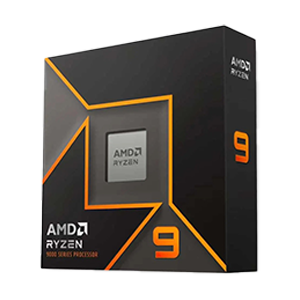
Your processor also matters. An older CPU may limit a new graphics card in CPU-intensive games, especially when targeting very high frame rates.
Use HexTech’s NVIDIA vs AMD graphics card comparison to explore GPU considerations, and review the best gaming PCs for 1440p and 4K gaming guide if you are planning a resolution upgrade.
5. Which Upgrade Should Come First?
| Your main problem |
Upgrade to consider first |
| PC slows down with multiple apps open |
RAM, if memory usage is consistently high |
| Windows and applications load slowly |
SSD, especially if using a hard drive |
| Games have low frame rates |
GPU, if it is the performance bottleneck |
| Games stutter while memory is nearly full |
RAM, after checking other causes |
| New GPU would require several other components |
Compare a full-system upgrade |
These are starting points, not guarantees. A PC with several limitations may need more than one upgrade. Check performance during the actual workload before deciding.
6. Check Compatibility and Total Cost
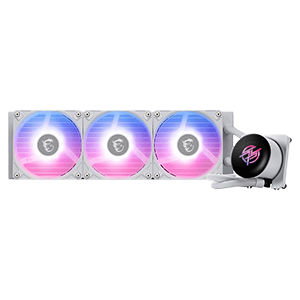
A component’s price is only part of the upgrade cost. You may also need installation, additional cooling, a stronger power supply, or other supporting hardware.
RAM and SSD upgrades are often straightforward when the system supports the required components. A GPU upgrade can be more complicated if the card is physically large or requires more power than your current system can provide.
If your processor is also limiting performance, read HexTech’s guide to the best CPU for gaming PCs in the UAE. A balanced combination of CPU, GPU, memory, and storage is usually more useful than investing heavily in a single component while ignoring another bottleneck.
7. When Is Replacing the Whole PC Better?
Sometimes upgrading individual parts is no longer cost-effective. An older motherboard may limit memory and processor options, while a weak power supply or restricted case can make a graphics upgrade expensive.
Compare the cost of all required upgrades with a complete replacement. Also consider warranty coverage, expected performance, and how long you intend to keep the system.
If you need a more capable gaming setup, explore the HexTech Performance Series gaming PCs. This is the only gaming PC category link included in this article.
Final Verdict
Upgrade RAM when memory capacity limits multitasking, choose an SSD when storage speed affects everyday responsiveness, and prioritise the GPU when gaming graphics performance is the main problem.
The smartest approach is to diagnose your PC, confirm compatibility, and compare the complete cost before buying anything. A targeted upgrade can extend your computer’s useful life, while a balanced replacement may be better when several major components are outdated.
Frequently Asked Questions
Should I upgrade RAM, SSD, or GPU first?
It depends on the problem. Upgrade RAM for memory shortages, an SSD for slow loading and startup, or the GPU for graphics performance when it is the main bottleneck.
Does adding RAM increase FPS?
It can improve performance when insufficient memory causes stuttering or limits a game. If you already have enough RAM, adding more may not noticeably increase FPS.
Will an SSD make games run faster?
An SSD generally improves loading times and system responsiveness. It usually does not significantly increase average FPS compared with an otherwise similar system using adequate storage.
Is 16GB RAM enough for gaming?
It remains suitable for many games. However, 32GB offers more flexibility for demanding titles, multitasking, streaming, and background applications.
Is a GPU upgrade worth it for an older PC?
It can be, provided the processor, power supply, motherboard, and case support the new card. Check for potential CPU bottlenecks before purchasing.
Should I buy an NVMe SSD or a SATA SSD?
An NVMe SSD can offer higher transfer speeds when supported by your system. A SATA SSD can still be an excellent upgrade over a mechanical hard drive.
How do I know if my GPU is the bottleneck?
Monitor GPU usage, CPU activity, temperatures, and frame rates while playing your usual games. High GPU usage may indicate a graphics limitation, but no single measurement proves the cause in every situation.
Can I upgrade RAM without replacing my motherboard?
Often, yes, if compatible memory slots are available. Check the motherboard’s supported memory type, maximum capacity, and configuration.
Is upgrading a PC cheaper than buying a new one?
A targeted upgrade is often cheaper. However, if several components need replacement, compare the total upgrade cost with a complete system that meets your requirements.
Should I upgrade my PC before buying a new gaming monitor?
Check whether your current PC can support the monitor’s resolution and refresh rate. If it cannot deliver the performance you want, a GPU upgrade or a balanced system upgrade may be necessary.