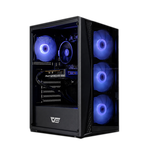
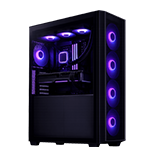
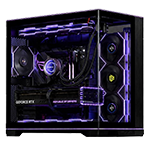
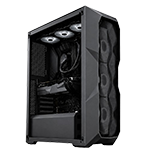
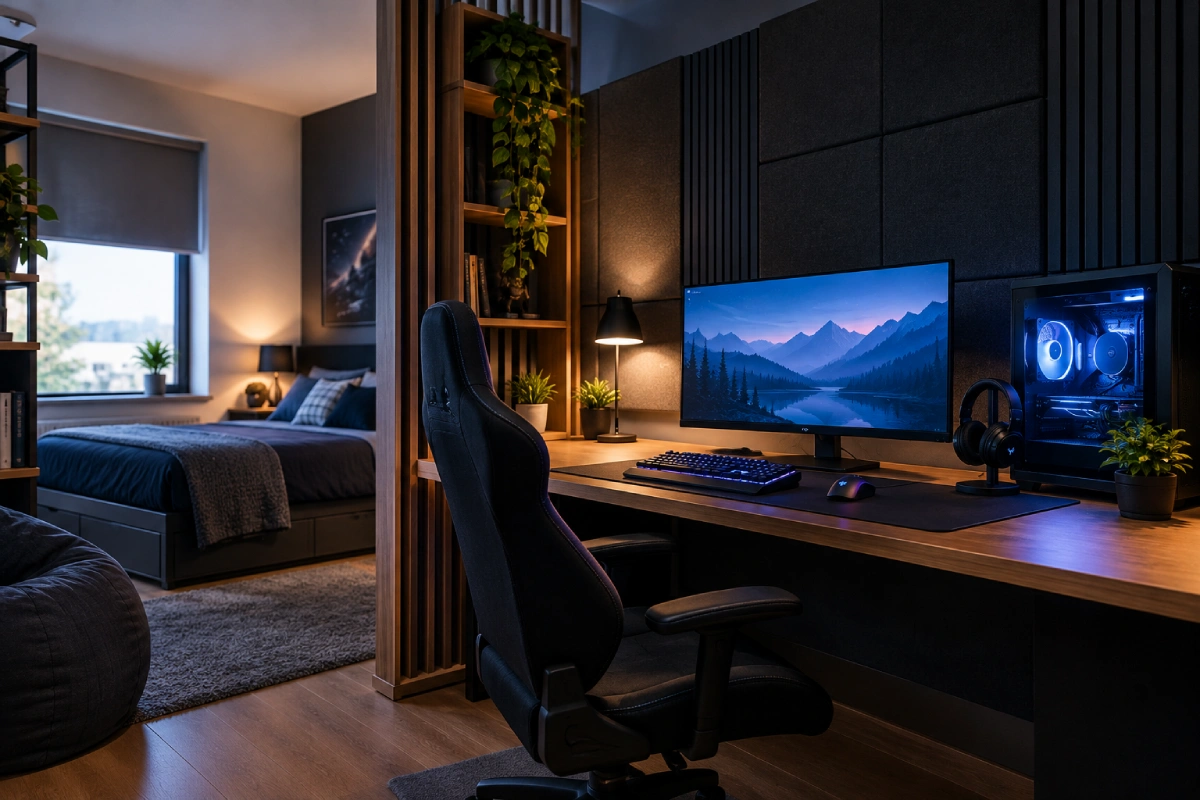
Gaming in a shared bedroom, apartment, or family living space can be challenging when your computer fans, keyboard, and voice chat disturb other people. You may want to play late at night, attend online gaming sessions, or stream your gameplay without creating unnecessary noise.
The good news is that you do not need to sacrifice gaming performance or spend a fortune to make your setup quieter. With the right hardware, sensible PC placement, quieter peripherals, and a few configuration changes, you can create a comfortable gaming space that works for everyone.
Whether you are setting up your first computer or improving an existing system, this guide explains how to reduce noise while maintaining good cooling and reliable performance.
1. Identify Where the Noise Comes From
Before buying new equipment, identify which part of your setup makes the most noise. A gaming PC can produce sound from its graphics card fans, CPU cooler, case fans, power supply, and sometimes liquid-cooling pumps. Mechanical hard drives and vibrating panels can add further noise.
Your desk accessories can also contribute. Mechanical keyboards with clicky switches, loud mouse buttons, and speakers playing game audio may disturb someone sitting nearby.
Start by listening to your setup in different situations:
- At the Windows desktop, when the computer is under light load
- While launching a game
- During demanding gameplay
- When using your microphone or speakers
If the fans become noticeably louder during gaming, heat and airflow may be contributing to the problem. A high-pitched electrical sound, however, may be coil whine rather than a fan issue.
Identifying the source first helps you choose an effective solution instead of replacing components unnecessarily.
2. Choose a Gaming PC Designed for Quiet Operation
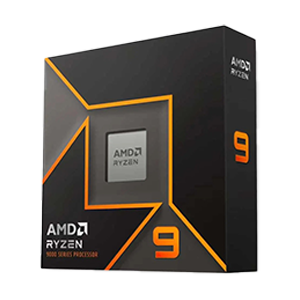
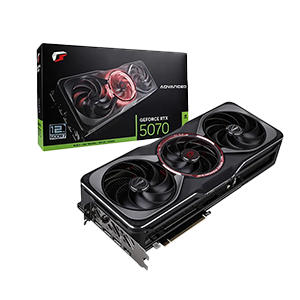
If you are purchasing a new computer, consider its cooling design alongside the processor and graphics card. Powerful hardware generates heat, and that heat must be removed to maintain stable performance.
A well-designed case with unobstructed airflow can allow fans to operate at lower speeds. Larger fans can often move sufficient air at lower rotational speeds, although actual noise depends on their design and installation.
Look for a PC with:
- Effective CPU and GPU cooling
- Quality case fans
- A reliable power supply
- Enough ventilation around the components
- A case that does not amplify vibration
- Hardware that matches your gaming requirements without unnecessary power consumption
A compact PC can work well in a shared room, but check its cooling capability before buying. A small case with restricted airflow may need faster, noisier fans under heavy gaming loads.
For budget-conscious buyers, explore HexTech’s Starter Series gaming PCs under AED 5000 and compare the specifications of available systems. Consider cooling, power supply quality, and component performance rather than choosing on price alone.
3. Improve Airflow Before Replacing Fans
One of the simplest ways to reduce gaming PC noise is to ensure that air can move freely through the case. When airflow is restricted, components may become hotter and their fans may speed up to compensate.
Start by checking whether the PC’s intake and exhaust vents are blocked. Keep the tower away from walls that restrict ventilation, and avoid placing it inside a closed cabinet.
Next, inspect the dust filters and fans. Dust buildup can reduce cooling efficiency, making the system work harder during demanding games. Switch off and unplug the computer before cleaning it, and follow the manufacturer’s cleaning recommendations.
Good cable management can also help prevent cables from obstructing airflow. However, adding more fans is not always the answer. Too many fans, poorly positioned fans, or conflicting airflow patterns can create additional noise without delivering meaningful temperature improvements.
Make one change at a time, then check temperatures and fan behaviour during the same game or workload.
4. Adjust Fan Speeds and Gaming Performance Settings
If your PC is cooling properly but its fans constantly ramp up and down, its fan settings may be too aggressive.
Many motherboards provide fan-control settings in the BIOS or through manufacturer software. These settings allow you to adjust fan speeds according to temperature.
A gradual fan curve can help prevent sudden bursts of noise when temperatures change briefly. Set low speeds during light use and allow fans to increase as necessary under heavier loads.
Do not simply set every fan to its minimum speed. Your processor and graphics card still need sufficient cooling during demanding games.
You can also reduce unnecessary workload by limiting frame rates. If a game produces far more frames than your monitor can display, setting an appropriate frame-rate cap may reduce GPU usage, power consumption, heat, and fan noise.
Some graphics cards and processors support power-limit adjustments or undervolting. These options can sometimes reduce heat while maintaining useful performance, but they should be approached carefully and tested for stability.
5. Consider Air Cooling and Liquid Cooling Carefully
Liquid cooling is often associated with quiet gaming PCs, but it is not automatically quieter than air cooling.
A good air cooler with a large heatsink and quality fan can cool a processor effectively without introducing pump noise. It is often a practical choice for users who want straightforward maintenance and reliable operation.
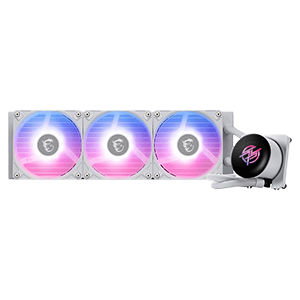
An all-in-one liquid cooler may provide useful thermal performance for certain processors and case layouts. However, its radiator fans still make noise, and the pump can produce a continuous hum.
When comparing cooling options, consider the processor’s heat output, the case’s available space, maintenance requirements, and the sound characteristics of the complete system.
For a shared room, the goal is not necessarily to choose the most expensive cooling solution. It is to maintain safe operating temperatures without forcing fans to run faster than necessary.
6. Select Quieter Keyboards, Mice, and Headphones
Your PC is only one part of a quiet gaming setup. Peripherals can make a noticeable difference, particularly when someone is sleeping, studying, or working nearby.
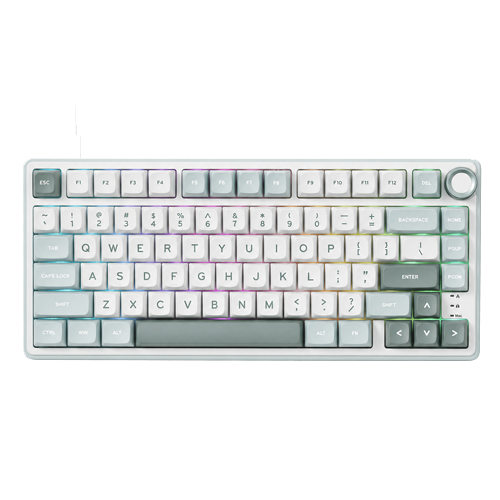
Keyboard: Consider a membrane keyboard or a mechanical keyboard with quieter switches. Linear switches generally avoid the sharp click of clicky switches, although the sound of keys bottoming out can still be audible. A desk mat can reduce some impact noise.
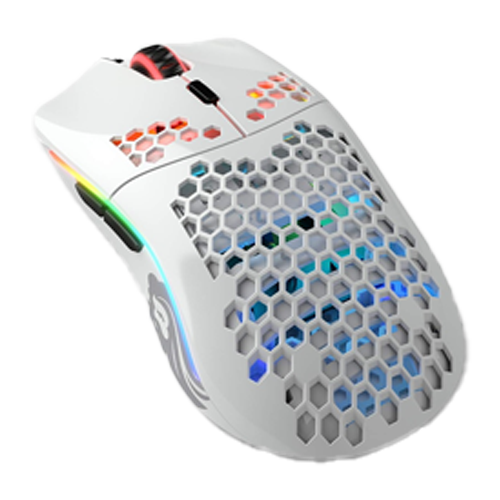
Mouse: Look for a mouse with quiet-click buttons if repeated clicking is distracting. Wireless models can also help reduce cable movement across the desk.
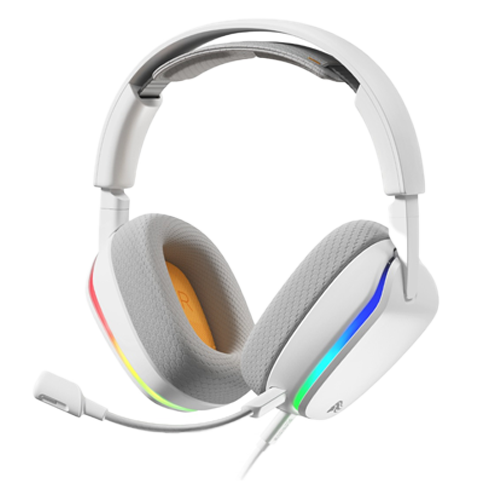
Headphones: A comfortable gaming headset lets you hear game audio without using speakers. Closed-back designs can help reduce sound leakage, while active noise cancellation may help with surrounding noise. It does not eliminate the sound of your keyboard or PC for other people.
Microphone: A properly positioned microphone with suitable noise suppression can reduce the amount of keyboard and fan noise heard by teammates. Software processing helps, but it cannot remove every sound.
These small changes can improve comfort for both you and the people sharing your room.
7. Position Your PC and Desk Strategically
Where you place your computer can influence how noticeable its noise becomes. If possible, position the tower slightly farther from your ears instead of directly beside your head.
Placing the PC beneath a desk may help reduce perceived noise, provided it has enough ventilation. Do not place the case on thick carpet if this blocks its bottom intake or increases dust exposure. A stable, hard surface or suitable stand is generally preferable.
Avoid positioning the computer directly against a wall or inside a cramped enclosure. Restricted airflow can increase temperatures and cause louder fan operation.
You should also consider the room’s layout. Keep the monitor and speakers facing your own seating position, use headphones at night, and route cables neatly to prevent accidental knocks or vibrations.
In a shared room, a few centimetres of extra clearance and a sensible desk arrangement can be more useful than buying expensive soundproofing products.
8. Reduce Vibration and Maintain Your PC
Sometimes the noise you hear is not simply airflow. A loose side panel, poorly secured fan, vibrating desk, or mechanical hard drive can create a persistent hum or rattling sound.
Check that the case panels are secured and that accessible fan mounts are fitted correctly. Rubber isolation mounts can help reduce vibration transferred from fans to the case. A stable desk and suitable feet under the computer may also reduce unwanted resonance.
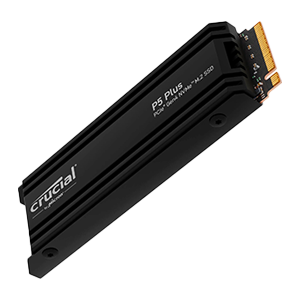
If your computer uses a mechanical hard drive, consider whether an SSD would suit your storage needs. SSDs have no spinning platters or moving read/write heads, so they eliminate mechanical drive noise.
Regular maintenance is equally important. Clean dust filters and inspect the cooling system periodically, especially if the room is dusty or the PC sits near the floor. If a fan starts grinding or a pump makes an unusual noise, investigate the cause rather than ignoring it.
Do not open the power supply or attempt repairs beyond your experience. Seek qualified help if the noise suggests a hardware fault.
9. Create a Shared-Room Gaming Routine
A quiet setup also depends on how you use it. Agree on reasonable gaming hours with roommates or family members, particularly if someone has an early start or needs a quiet environment for studying.
Use headphones instead of speakers during late-night sessions, lower notification volumes, and disable unnecessary system sounds. If you communicate through voice chat, use push-to-talk or suitable microphone noise suppression when appropriate.
You can also reduce unnecessary background activity by closing applications you do not need. Fewer background tasks may lower system load and prevent avoidable fan activity.
If you are planning a complete gaming station, our guide to a PC tower or complete setup under AED 5,000 explains why it is useful to budget for accessories as well as the computer itself.
10. Build a Quiet Setup Without Overspending
You do not need to upgrade everything at once. Start with free changes, such as improving PC placement, cleaning dust filters, adjusting fan curves carefully, and setting a reasonable frame-rate limit.
If noise remains a problem, consider quieter fans, a suitable CPU cooler, a less noisy keyboard, or better headphones. Prioritise the component that causes the most disturbance.
Remember that quiet operation must be balanced with cooling. A gaming PC should not overheat simply to achieve lower noise levels. Test your changes under realistic gaming conditions and restore safer settings if temperatures become excessive.
Conclusion
A quiet gaming setup makes shared living spaces more comfortable without taking away the enjoyment of gaming. Start by identifying the main noise sources, improve airflow, tune fan speeds sensibly, and choose quieter peripherals where they will make the biggest difference.
Keep the PC properly maintained, position it where ventilation remains unobstructed, and use headphones when others need peace and quiet. With a few thoughtful adjustments, you can build a setup that delivers reliable gaming performance while being considerate of everyone in the room.
Frequently Asked Questions
How can I make my gaming PC quieter without spending money?
Clean accessible dust filters, check that vents are unobstructed, adjust fan curves carefully, and set a suitable frame-rate limit in games. Monitor temperatures after making changes.
Is liquid cooling quieter than air cooling?
Not always. A quality air cooler can be very quiet, while liquid cooling introduces pump noise as well as radiator-fan noise. The result depends on the hardware and workload.
Should I place my gaming PC under my desk?
You can, provided the case has enough clearance for airflow and is not blocked by carpet, walls, or stored items. Avoid enclosed cabinets that trap heat.
Which keyboard is best for a shared room?
A membrane keyboard or a mechanical keyboard with quieter switches can be suitable. Look for reduced key-click noise and consider a desk mat to soften typing sounds.
Do gaming headphones stop other people from hearing my PC?
No. Headphones reduce your need for speakers, but they do not stop other people from hearing the computer fans or keyboard. Reducing the noise source is still important.
Why does my gaming PC get louder when I play games?
Gaming increases CPU and GPU workloads, which generate heat. The cooling fans may spin faster to keep temperatures within their operating limits.
Can limiting FPS reduce PC noise?
Yes. A suitable frame-rate cap can reduce unnecessary GPU workload in some games, potentially lowering power consumption, heat, and fan speed.
How often should I clean my gaming PC?
Inspect it regularly and clean it when dust accumulates. Many users benefit from checking every few months, with more frequent cleaning in dusty environments.
Can a small gaming PC be quiet?
Yes, if its components, case airflow, and cooling system are well matched. Compact systems may have less room for cooling, so check reviews and specifications carefully.
What should I upgrade first if my gaming setup is too noisy?
Identify the main source first. Depending on the cause, adjusting fan settings, improving airflow, replacing a noisy fan, or choosing quieter peripherals may provide the greatest improvement.