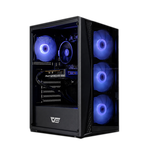
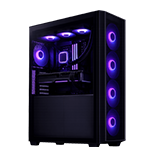
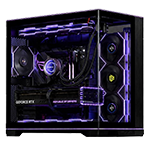
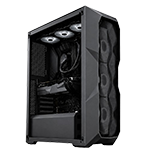
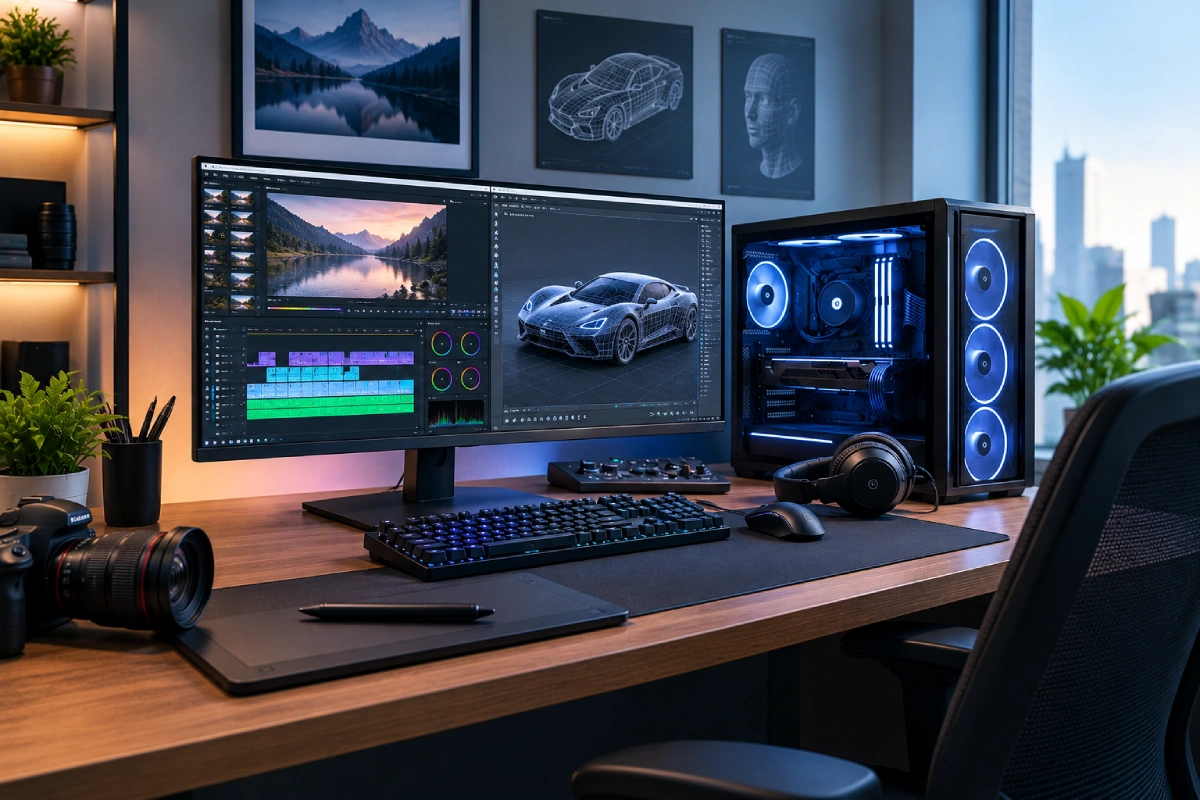
Video editing and 3D rendering demand more than an ordinary desktop computer. Whether you produce YouTube videos, edit commercial projects, create architectural visualisations, design product animations, or work with complex 3D scenes, your workstation directly affects productivity and project turnaround time.
Choosing the right configuration can help you preview footage smoothly, render detailed scenes efficiently, and manage demanding creative applications without unnecessary interruptions. However, spending more does not automatically guarantee better results. The best workstation is one that matches your software, workload, budget, and future requirements.
In this guide, we explain how to choose a workstation for video editing and 3D rendering, including the most important hardware components and practical recommendations for creators in the UAE.
1. Understand Your Creative Workload
Before purchasing a workstation, identify the applications and projects you use most frequently. Different creative tasks place different demands on computer hardware.
Video editors working with Adobe Premiere Pro, DaVinci Resolve, or After Effects may need a balanced combination of CPU performance, GPU acceleration, RAM, and fast storage. Meanwhile, professionals using Blender, Autodesk Maya, Cinema 4D, or 3ds Max may prioritise graphics performance, processor power, and memory capacity depending on their rendering engines.
For example, editing Full HD videos and producing short social media clips generally requires fewer resources than editing 4K or 8K footage with multiple effects. Similarly, simple 3D models are less demanding than detailed architectural scenes featuring complex lighting, high-resolution textures, and realistic materials.
Make a list of your primary applications, project resolutions, typical file sizes, and expected rendering times before selecting components.
2. Choose a Powerful Processor (CPU)
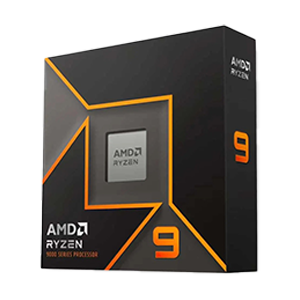
The CPU is essential for workstation performance. It handles many editing operations, application tasks, simulations, encoding processes, and CPU-based rendering workloads.
When choosing a processor, consider both single-core performance and the number of available cores. Some editing operations benefit from fast individual cores, while rendering and encoding tasks can take advantage of multiple cores working simultaneously.
For beginners and occasional creators, a modern six-core or eight-core processor may provide sufficient performance. Professionals working with complex timelines, heavy effects, simulations, and frequent rendering should consider higher-core-count processors.
AMD Ryzen 7 and Ryzen 9 processors, alongside suitable Intel Core Ultra and Intel Core desktop options, can provide strong performance for different workstation budgets.
The right choice depends on your software’s optimisation and whether your workload relies more heavily on CPU rendering, GPU rendering, or both. Before upgrading, compare application-specific benchmarks rather than relying exclusively on clock speeds or core counts.
3. Select the Right Graphics Card (GPU)
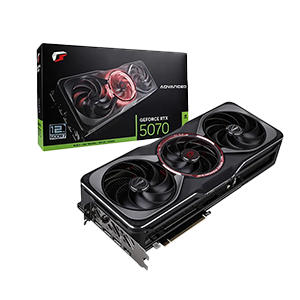
The GPU is one of the most important components for many modern creative workflows. It accelerates supported editing effects, playback, colour grading, visualisation, and GPU-based rendering.
For video editors, a capable graphics card can improve performance in GPU-accelerated applications such as DaVinci Resolve. For 3D artists, GPU rendering performance can significantly influence how quickly complex scenes are completed.
NVIDIA GeForce RTX graphics cards are popular among creators because of their CUDA support, ray-tracing capabilities, and hardware acceleration features. However, the best GPU depends on the rendering engine and software compatibility. Some workloads also benefit from AMD graphics cards.
Pay attention to VRAM, which stores textures, geometry data, and other graphics resources. Insufficient VRAM can restrict the size and complexity of scenes you can handle comfortably.
For general creative work, choose a capable mid-range GPU. For demanding 4K editing, detailed 3D scenes, animation, or GPU rendering, consider a higher-performance card with more VRAM.
For additional guidance, read our related article on NVIDIA vs AMD Graphics Cards before deciding which GPU architecture suits your software.
4. How Much RAM Does Your Workstation Need?
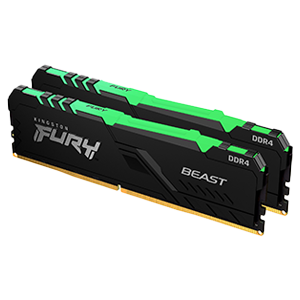
RAM determines how much active project data your workstation can handle without relying excessively on slower storage. Large video timelines, multiple applications, high-resolution textures, and complex 3D scenes can consume substantial memory.
Use these recommendations as a starting point:
-
16GB RAM: Suitable for basic Full HD editing and light creative work, although it can become restrictive.
-
32GB RAM: A practical starting point for serious video editing, moderate 3D modelling, and everyday content creation.
-
64GB RAM: Recommended for professional 4K editing, complex effects, animation, and demanding multitasking.
-
128GB RAM or more: Worth considering for large 3D scenes, advanced simulations, extensive visual effects, and memory-intensive professional projects.
Your software and project complexity should determine the final capacity. Also check your motherboard’s supported memory configuration and available upgrade slots before purchasing.
5. Invest in Fast and Reliable Storage
Storage affects how quickly your workstation loads applications, opens projects, accesses footage, and transfers large files. Video editors and 3D artists should prioritise speed, sufficient capacity, and reliable backups.
A practical workstation storage setup includes:
-
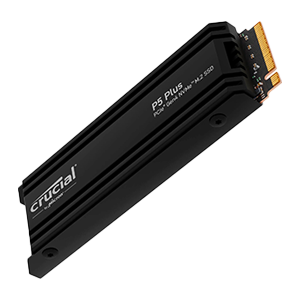
Primary NVMe SSD: Install your operating system and creative applications on a fast SSD.
-
Project SSD: Store active footage, project files, cache data, and frequently accessed assets on a separate drive when practical.
-
Archive storage: Use a high-capacity SSD, hard drive, or network storage solution for completed projects and older assets.
For most serious creators, a 1TB SSD is a reasonable starting point, while 2TB or more offers greater flexibility for large projects. If you regularly work with 4K footage, extensive media libraries, or detailed 3D assets, additional storage can quickly become necessary.
Remember that RAID configurations are not substitutes for independent backups. Keep important projects backed up to a separate device or secure storage location.
6. Choose Effective Cooling and a Reliable Power Supply
Video rendering and 3D workloads can keep your processor and graphics card under sustained load for extended periods. Without adequate cooling, temperatures may rise and reduce performance.
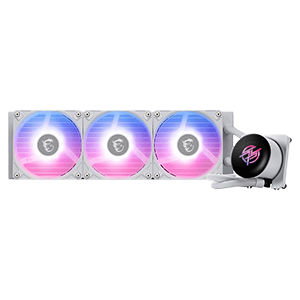
Choose a workstation case with good airflow, sufficient space for your graphics card, and appropriate intake and exhaust fans. A quality air cooler can handle many configurations, while more powerful processors may benefit from advanced cooling solutions.
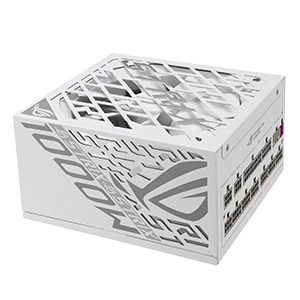
The power supply is equally important. Select a reputable unit with sufficient wattage for your CPU, GPU, storage, and other components. Higher-end graphics cards may require additional power capacity, so check the manufacturer’s recommendations.
Avoid choosing a power supply based only on its advertised wattage. Build quality, efficiency, electrical protections, suitable connectors, and warranty coverage also matter.
7. Select a Suitable Monitor and Workspace
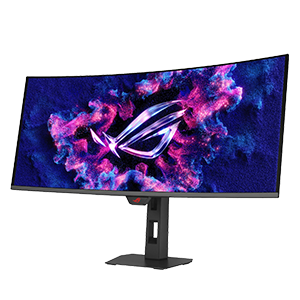
A powerful workstation deserves a monitor that allows you to evaluate your work accurately.
Video editors should consider screen resolution, colour accuracy, brightness, and colour-space coverage. A 4K display can provide additional workspace for detailed timelines and high-resolution footage.
For 3D artists, a larger screen or dual-monitor setup can make it easier to manage modelling tools, reference images, material editors, and rendering previews.
If colour-critical work is part of your job, consider a monitor with reliable colour reproduction and calibration support. Also invest in a comfortable desk, appropriate lighting, and an ergonomic chair to support long working sessions.
8. Balance Your Budget and Future Upgrades
A workstation should be designed around your actual requirements rather than the most expensive available components.
Suggested configurations by workload
| Workload |
Suggested starting configuration |
| Basic video editing |
6–8 CPU cores, 32GB RAM, capable GPU, 1TB SSD |
| Professional 4K editing |
8–16 CPU cores, 64GB RAM, powerful GPU, 2TB SSD |
| 3D modelling and rendering |
High-performance CPU, suitable GPU, 64GB RAM, fast SSD |
| Complex animation and simulations |
High-core-count CPU, powerful GPU, 128GB+ RAM, expandable storage |
These are general starting points, not universal requirements. Actual performance depends on the application, rendering engine, project complexity, and component selection.
When planning your purchase, allow room for future RAM, storage, and graphics card upgrades. A compatible motherboard, well-designed case, and reliable power supply can make future improvements easier.
If you are comparing different PC configurations, explore Hextech Computer’s Performance Series Gaming PCs. These systems can provide a useful starting point for evaluating hardware, although professional workloads may require a different configuration.
9. Should You Buy a Prebuilt Workstation or Build a Custom PC?
A prebuilt workstation offers convenience, professionally assembled components, and a straightforward purchasing experience. It can be suitable for creators who want to start working without researching every component individually.
A custom-built workstation provides greater control over the processor, graphics card, memory, storage, and cooling. This flexibility is particularly useful when your workflow has specific requirements, such as GPU rendering, complex visual effects, or large architectural scenes.
Whichever option you choose, confirm component compatibility, cooling capacity, warranty coverage, and upgrade options before purchasing.
At Hextech Computer, you can explore PC configurations and components to help identify a suitable system for creative and professional workloads.
Conclusion
Choosing a workstation for video editing and 3D rendering starts with understanding your workload. A capable processor, suitable graphics card, sufficient RAM, fast storage, effective cooling, and reliable power supply work together to determine overall performance.
For many professional creators, 64GB RAM, a modern multi-core CPU, a capable GPU, and a 2TB NVMe SSD provide a strong foundation. More demanding projects may justify additional memory, graphics performance, and storage.
Rather than buying the most expensive computer available, prioritise the components that make the biggest difference to your applications. A well-balanced workstation can improve productivity today while leaving room for future upgrades.
Frequently Asked Questions
What is the best workstation for video editing and 3D rendering?
The best workstation depends on your software and workload. Look for a modern multi-core processor, a capable GPU, at least 32GB RAM, fast NVMe storage, and effective cooling.
Is 32GB RAM enough for professional video editing?
32GB is sufficient for many editing projects, including some 4K workflows. However, complex timelines, After Effects compositions, and intensive multitasking may benefit from 64GB or more.
Is 64GB RAM enough for 3D rendering?
64GB is a strong starting point for many professional 3D workflows. Large scenes, simulations, and complex projects may require 128GB or additional memory.
Which graphics card is best for 3D rendering?
The best GPU depends on your rendering engine, software compatibility, performance requirements, and budget. NVIDIA RTX cards are popular for CUDA-supported rendering, while other GPUs may suit specific applications.
Is a powerful CPU more important than a GPU?
Neither is universally more important. CPU rendering benefits from processor performance, while GPU rendering depends heavily on graphics hardware. Video editing often benefits from a balanced combination.
How much SSD storage does a workstation need?
A 1TB SSD can suit smaller projects, while 2TB or more is generally more practical for professional editing and 3D work. Additional storage may be needed for large media libraries.
Can a gaming PC be used for professional rendering?
Yes. A gaming PC with a powerful CPU, suitable GPU, sufficient RAM, and fast storage can handle many professional creative workloads. Check software requirements before purchasing.
Is liquid cooling necessary for a rendering workstation?
No. A quality air cooler can be sufficient for many systems. Liquid cooling is an option for higher-power configurations, provided it is properly selected and installed.
What should I prioritise when buying a workstation on a budget?
Prioritise the components that directly affect your workload. For GPU rendering, allocate sufficient budget to the graphics card. For CPU-based rendering, consider processor performance and core count. Avoid compromising excessively on RAM, storage, or cooling.
Can I upgrade my workstation later?
Yes, if the motherboard, power supply, case, and other components support the upgrades. Check memory capacity, storage connections, GPU clearance, and power requirements before purchasing.